Overview
Connect your Facebook account for the ability to post listings on a Facebook business and personal page.
Please log in to your Facebook account before going through the steps.
Video Instructions
00:00: This tutorial explains how to set up your social media profiles for automation and
00:04: manual posting.
00:06: You will learn to connect your social accounts through the Realistic RE platform.
00:11: So you can setup automatic posting
00:13: or create post manually for your listings.
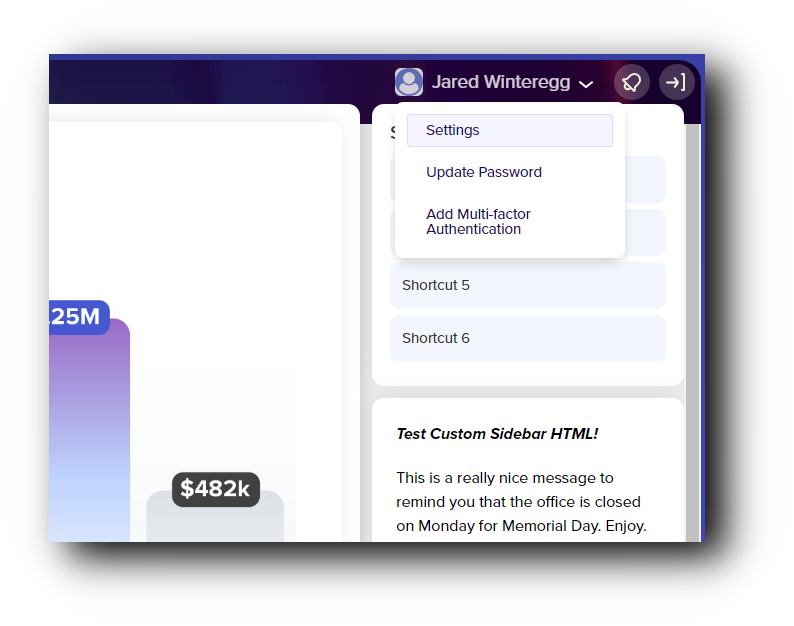
00:16: From your username on the dashboard, click settings.
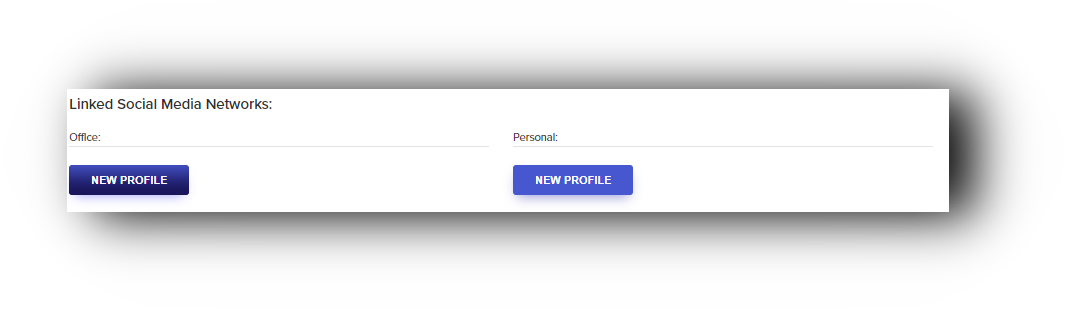
00:21: From here, you're going to scroll down to the bottom of the settings page and click
00:24: on New Profile for either office or personal.
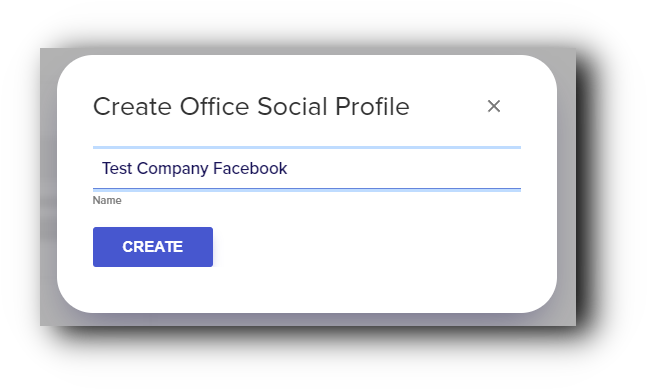
00:27: Create a profile name.
00:28: This will be used when selecting which profile you want to use for your automation
00:33: or manual post.
00:35: Once labeled, click Save.
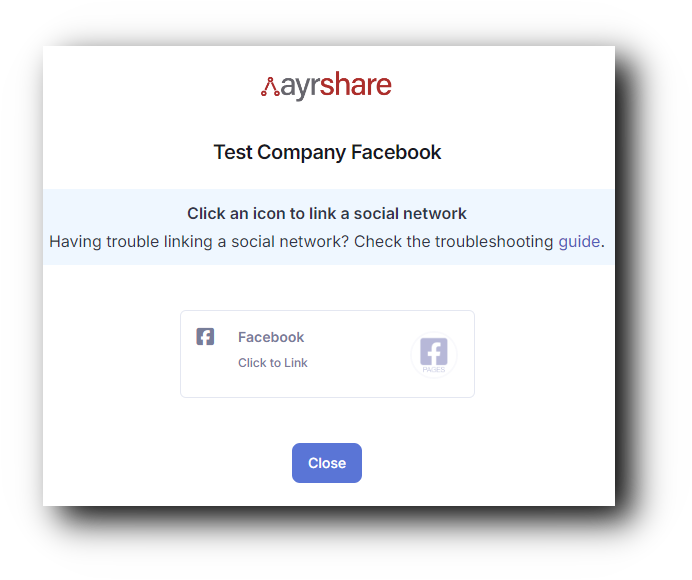
00:37: Next you will click on Connect/Update Accounts. It's
00:40: going to take you to a program called Ayrshare, this
00:42: is where you're going to connect of your Instagram and Facebook.
00:46: In Ayrshare your going to click on the social media account you want to setup.
00:50: For this example we will be doing Facebook.
00:54: Its best to be logged into the social account before
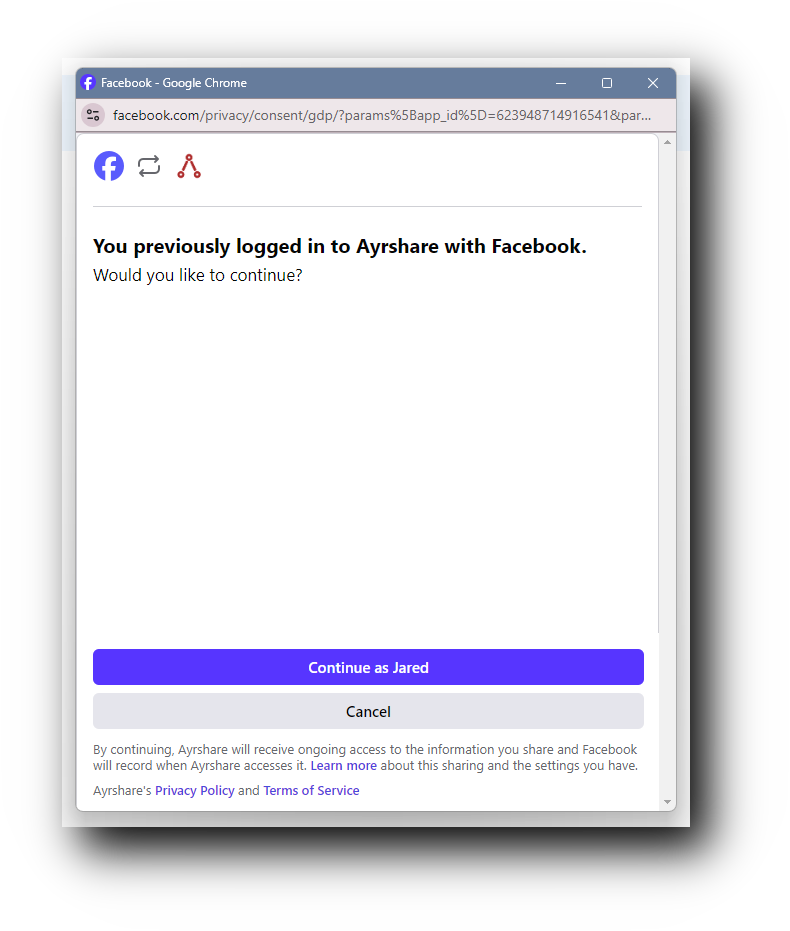
00:56: starting. You will want to continue with the account
00:59: you have access to your realtor page on.
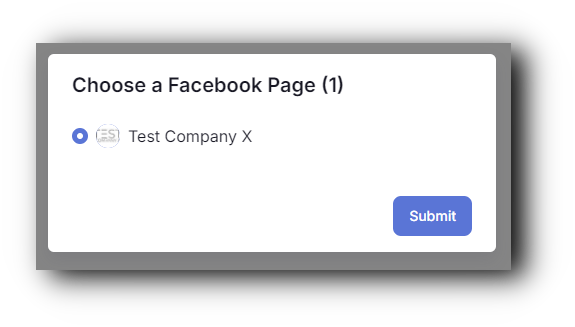
01:02: When connected you will be asked what Facebook page you would like to connect to.
01:05: This is the page the social post will go out to
01:10: Once selected, click Submit.
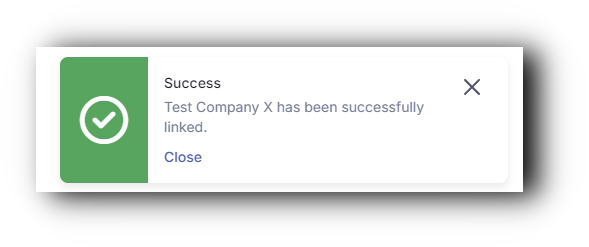
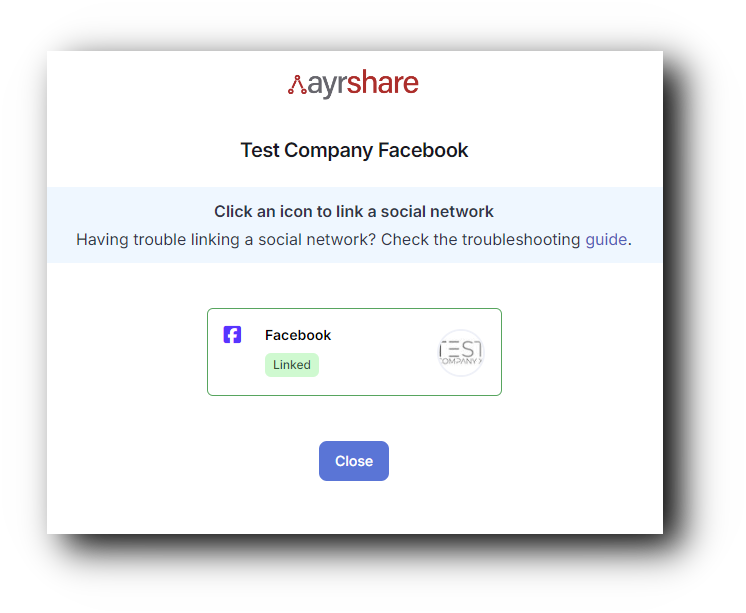
01:12: My Facebook page is linked and can be used in Realistic RE.
01:17: You have successfully set up and connected your social media profiles.
01:21: Your Facebook account is now linked through the Realistic RE and Ayrshare platforms,
01:25: ready for use.
How to Connect
1. From the Realistic RE dashboard, navigate to your name (top right) and select Settings.
2. Scroll down to Linked Social Media Network & click New Profile on either office or personal.
3. Type in a profile name and press Create.
4. You will be taken to another page to link your Facebook account. Click on the Click to Link
5. Press Continue if you're logged into the correct account.
6. Select the Page you would like to post listings to and press Submit.
7. If successful, you will get a notification on the right side of the screen that you successfully connected your account.
- You will also see a message on the click box that says linked.
If you have any issues, please contact support@realisticre.com or chat with us here.
