
1. Click "Contact Center"

2. Click here

3. Click "EXPORT"

4. Click "Search"

5. Select your groups you want to export.

6. Click here "EXPORT"

7. Find and open the CSV that download

8. Select rows 1, 2, & 3

9. Right-click and select "Delete"

10. Click "Save"

11. You can close the CSV file now

12. Login to your www.Avery.com account and Click "Templates"

13. Enter your Avery label number here.

14. Select the labels you are using

15. Click "START DESIGNING"

16. Click here the style you want for the labels.

17. Click "Import Data" on the left side

18. Click "Start Import/Merge"

19. Click "BROWSE FOR FILE"

20. Select the file you just downloaded and edited.

21. Click "Open"

22. Click "If the first row contains your column titles, uncheck this box so they do not print."

23. Click "NEXT"

24. This is where we start adding the datapoints you would like on the label. You can do this by double-clicking.
I will be doing First Name, Last Name, Address 1, Address 2, City, State Abbreviation, & Zip.
Double-click "FirstName"

25. Press [[Backspace]]
26. Double-click "LastName"

27. Press [[Return]]

28. Double-click "Address1"

29. Double-click "Address2"

30. Double-click "City"

31. Press [[Backspace]] and then add a "," (comma)
32. Double-click "StateAbbreviation"

33. Double-click "Zipcode"

34. Click "NEXT"

35. Click "FINISH"

36. Click "PREVIEW & PRINT"

37. Click "GET PDF TO PRINT"

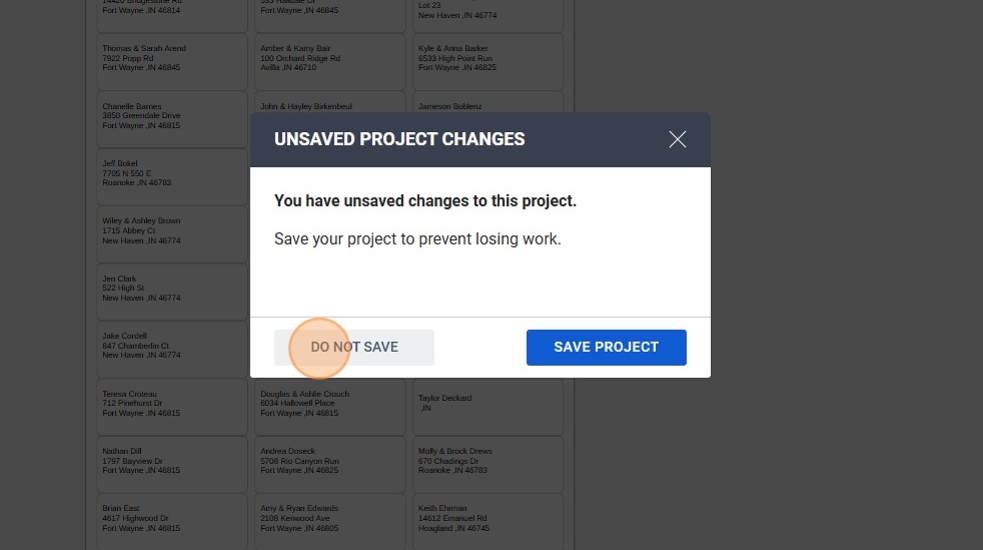
38. Click "DO NOT SAVE"
39. Click "OPEN PDF"

40. Click "Print"

41. Select your printer.
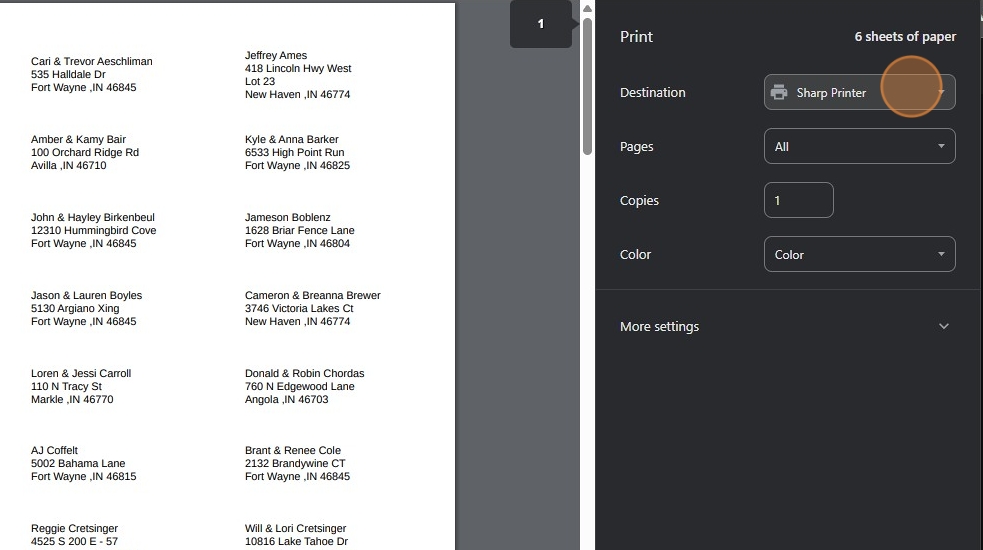
42. Click Print
